| User Guide Infographic | Overview of Data-Viewer display |
|---|
The example below shows a Data-Viewer Web Part with filtering enabled.
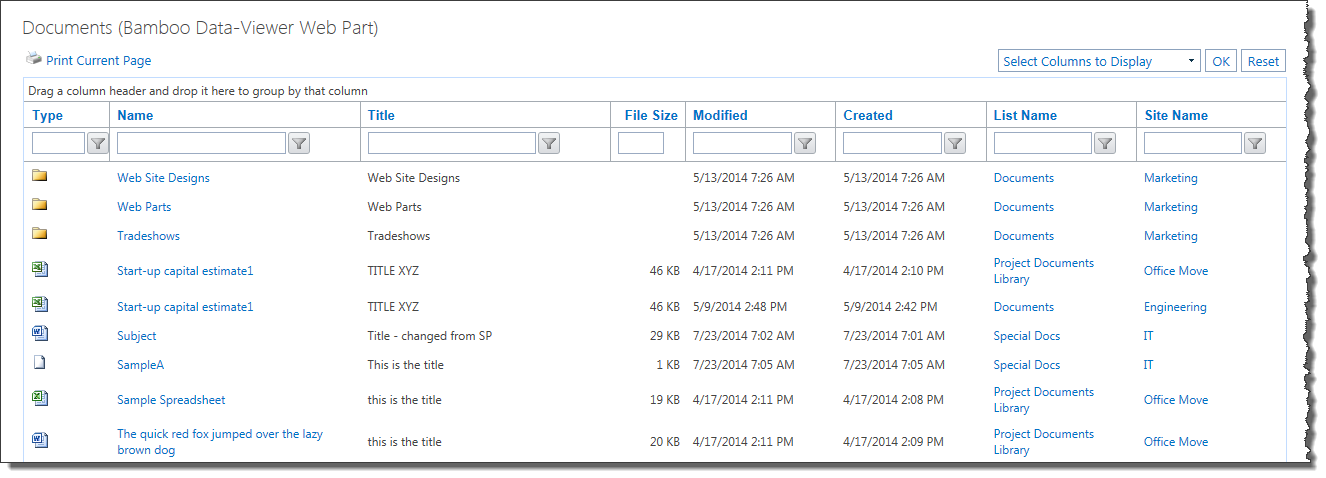
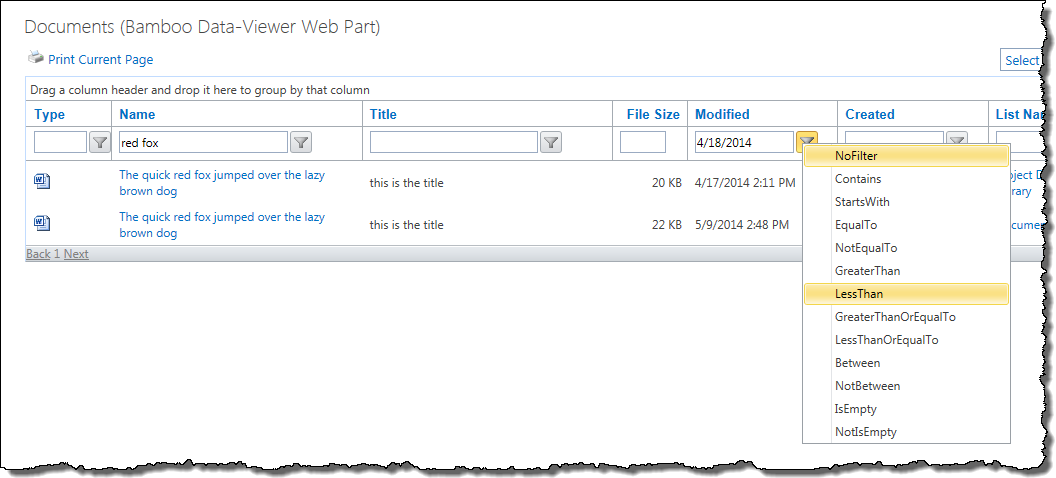
If the Allow filtering option is enabled, the filter boxes are displayed at the top of each column included in the Data-Viewer display. Follow these steps to filter the data:
| Step | Action |
| 1. |
Then click the associated Filter icon ( Selecting the operator implements the filter.
|
| 2. | To further filter the data set using a filter in a different column, simply enter the text for the appropriate column and choose the operator. The additional criteria will be added to the previous one to further filter the data set.
 |
| 3. |
To remove a filter from a column, click the filter icon and select No Filter.
|
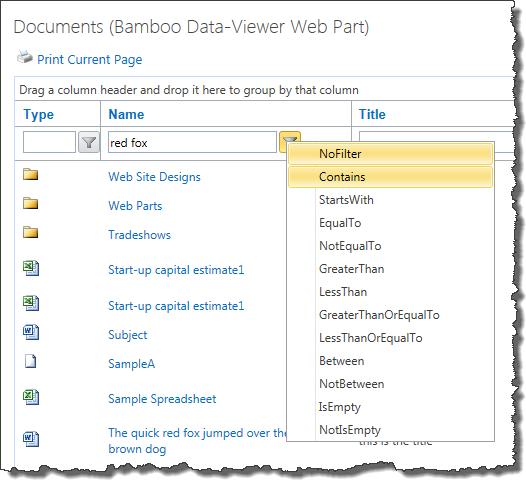 Filter data by entering a value in the filter text box displayed at the top of each column. For example, enter red fox in the filter box for the Name column, as shown here.
 ) and choose the operator. In the example shown, choose Contains to filter the list to show only the items where the Name column contains the string red fox.
See also:
| User Guide Infographic | Overview of Data-Viewer display |
|---|