| Return to Configuration Overview |
|---|
You have a variety of options when configuring Tree View, one of which is using a SharePoint Site as your data source. You have two other data sources from which to choose:
Depending on your choices, you see different options. This covers leveraging a SharePoint Site as your data source.
| Step | Action | Result |
| 1. | Data Source = SharePoint Site When you choose a SharePoint List as your data source, your options appear on screen as shown here. Details on each option are described in the table below. |
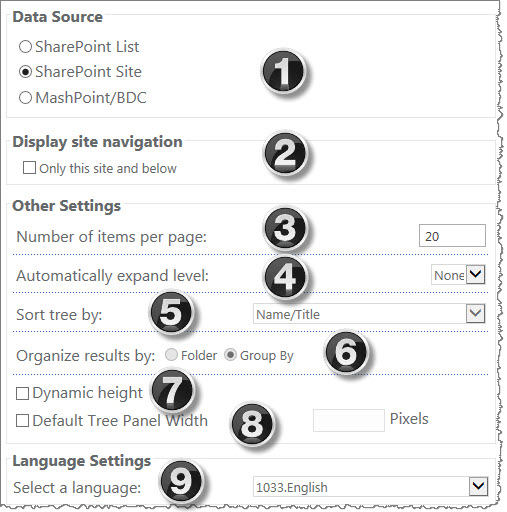 |
| 2. | Display this site and below | Check this box to show this site and all sub-sites within the site collection. |
| 3. | Number of items per page | This option is only enabled when you select a document or picture library. Tree View uses this number to display the number of items per page when a tree node is selected. |
| 4. | Automatically expand level | Select this check box to automatically expand the tree nodes up to 3 levels when the web part renders on a page. |
| 5. | Sort tree by | Select a column by which to sort the tree. |
| 6. | Dynamic height | This option allows the web part to expand in height based on the amount of data displayed in the left or right panes. |
| 7. | Default Tree Panel Width in Pixels | You can set a fixed width for the tree; if you check this box, fill in the number of pixels in the box on the right. |
| 8. | Inherit Site Theme | This option will inherit your existing SharePoint site theme. |
| 9. | Skins | Optionally, you can select from a variety of skins available from the drop-down menu. |
| 10. | Custom CSS | This option allows you to customize the web part to match your branding. |
| 11. | Select a language | Pick a language from the drop-down menu. More details about localization of Bamboo products can be found here. |