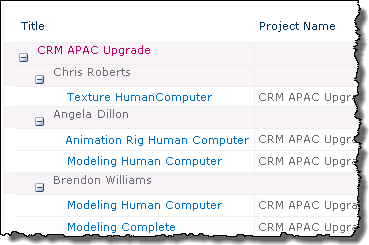
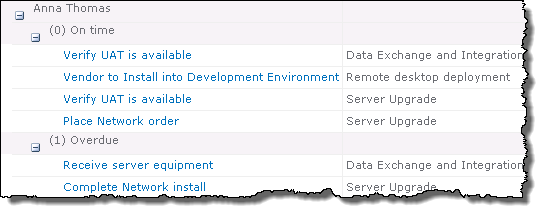
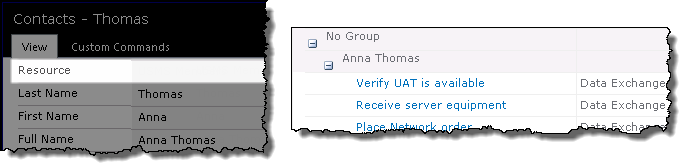
The Resource Assignments Gantt Chart provides a visual summary of resource assignments.
When working with the Resource Assignments Gantt report keep in mind:
-
Only users with Full Control or Design permissions can access the Resource Center by way of the site’s PM Central Control Panel.
-
Assignments are only displayed when a resource has been associated with a task, using with the Assigned To or Resource fields in the task.
-
The information in this Web Part will be updated automatically by a timer job that is scheduled to run on a daily basis, or when you select the Run Now button.
-
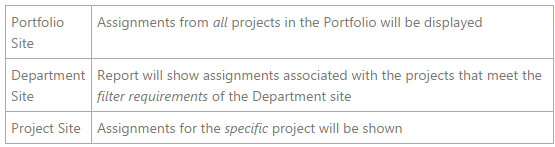
The scope of the information displayed in the report will depend on where the Resource Assignment page is accessed:
| Function | ||
|---|---|---|
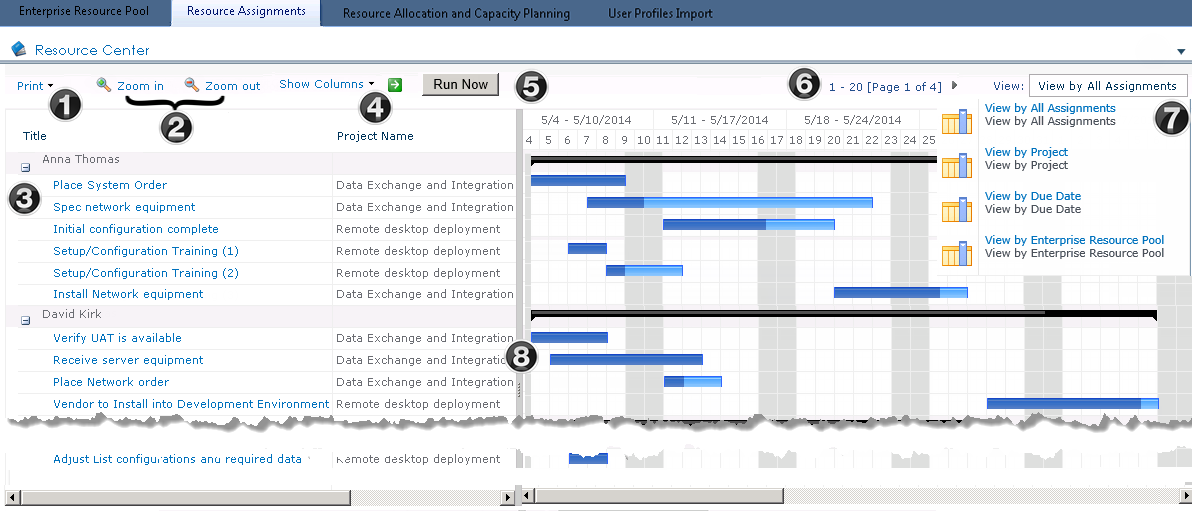
| 1. | Print the grid with the task information, just the Gantt chart, or both from the drop down menu. 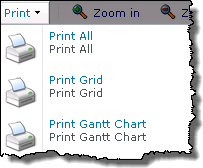 |
|
| 2. |
Use the Zoom In and Zoom Out buttons to view tasks in the Gantt view from daily (Zoom In) to monthly (Zoom Out).
|
|
| 3. | Click + or – to expand or collapse information in the assignment grid. When collapsed only the black summary bar depicting the total duration of the resource’s assignments will be displayed.  |
|
| 4. |
Selecting and already checked box will remove it from the grid
|
|
| 5. | Click Run Now to force the Bamboo Gantt Chart Timer job to run immediately, updating the contents of the report. | |
| 6. | Page through the tasks and resources by clicking the arrow. The number of items shown per page can be changed in the web parts configuration tool pane. |
|
| 7. |
Choose your view using the drop-down list to the right of the Web Part toolbar:
|
|
| 8. | 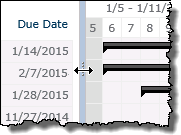 Place your cursor over the gray vertical bar between the assignment grid and the Gantt chart to show or hide either side. Place your cursor over the gray vertical bar between the assignment grid and the Gantt chart to show or hide either side. |
|
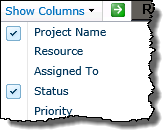 Choose which columns to display in the left-hand pane by selecting the desired columns from the Show Columns drop-down list, then click the green arrow to update the display.