If you need to change the frequency of a scheduled import, change the day it runs, or stop it from running, follow the steps below.
To schedule an import, see Schedule Unattended & Recurring Imports.
| Step | Action |
|---|---|
| 1. | 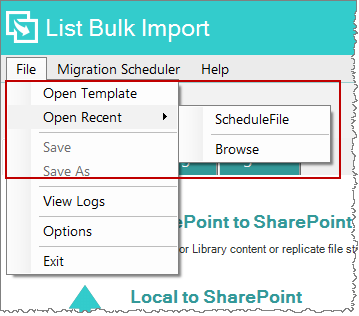 From the main file menu, click Migration Scheduler > Modify Scheduled Migration. From the main file menu, click Migration Scheduler > Modify Scheduled Migration. |
| 2. | 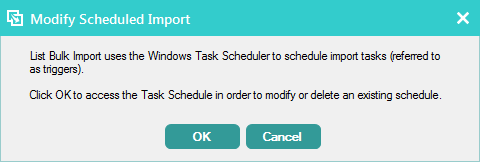 Click OK to acknowledge that the application is starting Windows Task Scheduler. Click OK to acknowledge that the application is starting Windows Task Scheduler. |
| 3. | The Task Scheduler available on your PC opens. The one shown here from a Windows 7 PC.
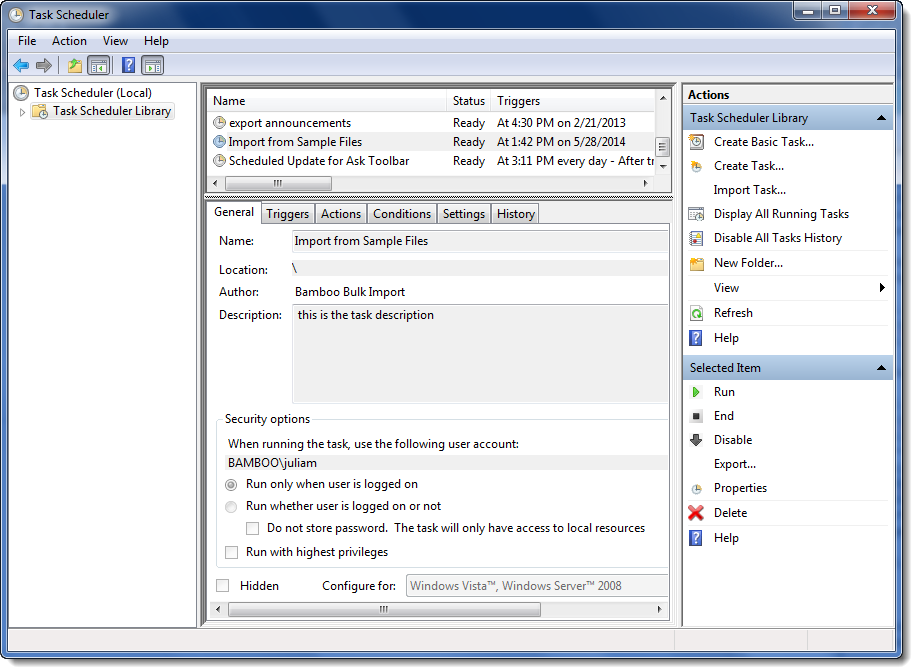 Click Task Scheduler Library in the left pane to see the available jobs. |
| 4. |
The Properties dialog appears. |
| 5. |
Click the Triggers tab of the Properties dialog, and then click Edit to modify the schedule. The Edit Trigger dialog appears. 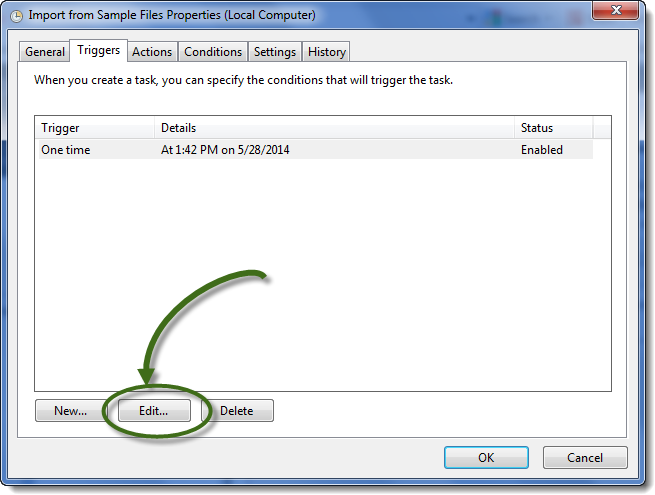 On the Edit Trigger dialog, make the necessary changes.
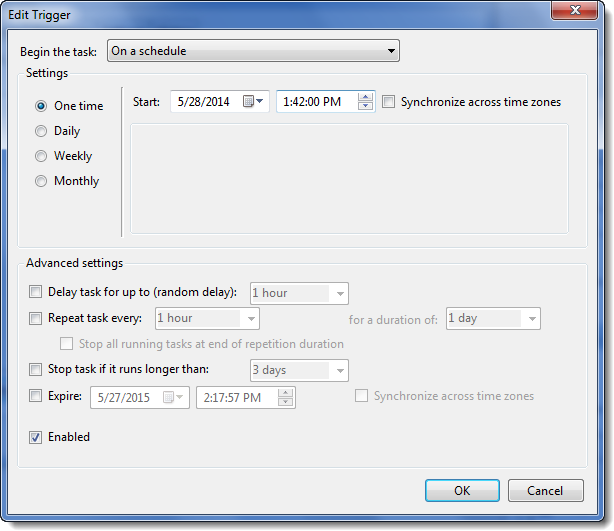 When ready, click OK. Otherwise, click Cancel to close the dialog without making any changes.
|
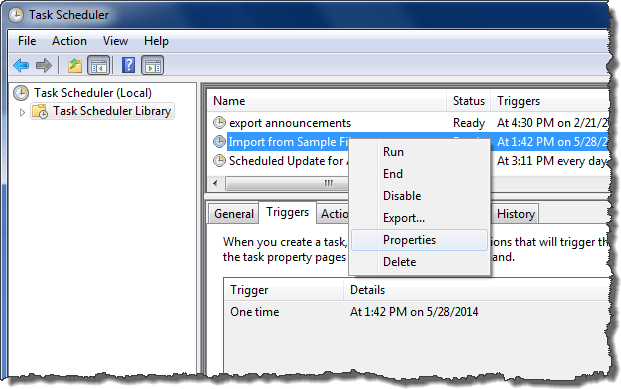 Right click the job you want to modify and select Properties from the menu.
 If you want to delete or disable your scheduled job, click Delete or Disable from this menu. Disabled jobs can be enabled at a later time.
 IMPORTANT: Bamboo recommends changes to the Triggers tab only. The remaining tabs are preconfigured based on the requirements of the application.