| TTM Configuration Overview | Time Tracking checklist |
|---|
Time Tracking and Management (TTM) lets you customize the column names displayed in the Timesheet Entry and Timesheet Report Web Parts.
Keep in mind:
- This is an optional step in the Time Tracking configuration checklist
-
You can restrict access to the Timesheet Columns Configuration list using SharePoint permissions.
- More information on permissions in TTM is available here
-
Information on how to hide columns from the Timesheet Entry display is available here
To change the column display names:
| Step | Action |
| 1. | Go the Site Content and click the Timesheet Columns Configuration list
OR |
| 2. |
The list displays the default columns found in the TTM Timesheets lists.
|
| 3. | In the Mapping Column Name fields, replace with default name with the name you would like displayed in the Timesheet Entry and reports, then click Save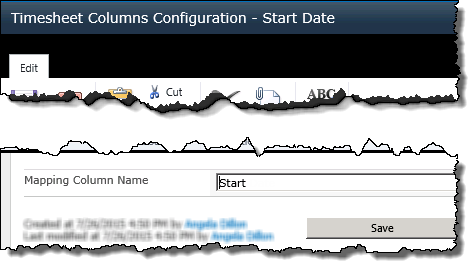 |
| 4. | The column alias will be shown in the Mapping Column Name column.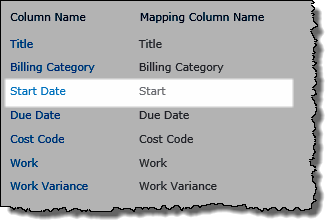 |
|
This column alias will be automatically used in both the Timesheet Entry and TTM Report Web Parts NOTE: For information on hiding columns from the Timesheet Entry Web Part click here] |
|
| To return to the Time Tracking configuration checklist, use the Time Tracking link in the TTM quick launch menu
|
|
 IMPORTANT: Additional columns cannot be added to the Timesheet Entry display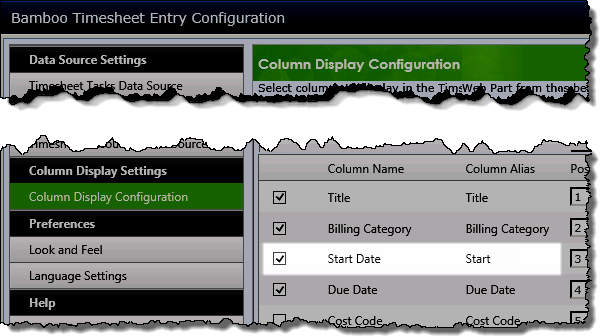
 To mark this item as complete in the checklist, click the
 button for the item.
| TTM Configuration Overview | Time Tracking checklist |
|---|