| Overview of the Alert Plus Web Part |
|---|
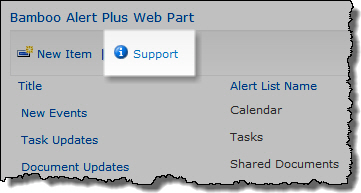 To access the Support page, click the Support link from the toolbar of the Alert Plus web part. This page includes options for testing the most common issues for Alert Plus and e-mail server functionality.
Alert Plus Registration
The Alert Plus Registration section tests that the site containing the Alert Plus Web Part is successfully registered so the Alert Plus Standard Timer Jobs know to check for alerts on it. When you access the Support page, a message is displayed telling you if the current site is registered. To check the registration for other sites, enter the absolute or relative path to the site and click Check Registration.
IMPORTANT: If you upgraded Alert Plus from version 2.8 or earlier, the site is re-registered with Alert Plus when you view the Web Part after upgrading (a step in the upgrade instructions). If a site shows as not registered when you check its registration, visit the Alert Plus Web Part page in that site to register it.

Alert Plus Event Handlers
Click View to see the event receivers/handlers used by Alert Plus. Specifically review the Reg. Info column to see the
registered events for each alert. There should not be any events listed in this column unless the Alert Event is A specific column in the list changes or An item in the list is deleted.
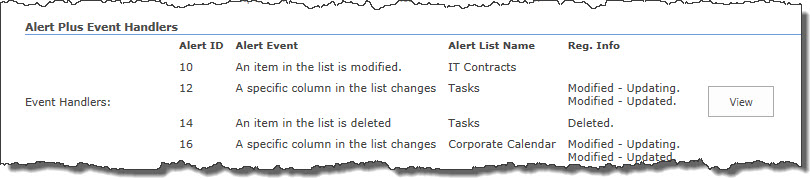
Disabling an alert will remove the Event Receiver(s) from the alert list. Enabling an alert will add the Event Receiver(s) to the alert list.
Registration Information
 From the Registration Info box, click View to view the XML code for the Web Part registration. This information is helpful to our Support staff if you experience a problem with Alert Plus.
Alert Plus E-mail Support
-
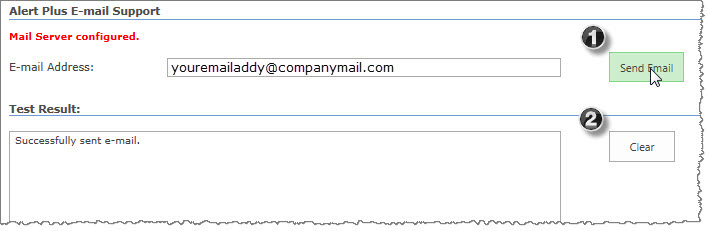
Click Send Email to test the configured e-mail settings for Alert Plus and display the results in the Test Result box.
Test Result
- The Test Result box shows the results from the Alert Plus E-mail Support test. The results are cleared each time the Web Part Page is loaded, or you can click Clear to clear the results.
You will also receive an email if your email server test is successful.

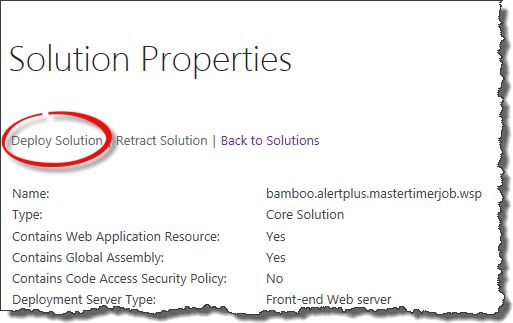 If they are there, but not deployed to the web application you need, deploy them to the appropriate web application. Click the solution name link, and on the Solution Properties page, click Deploy Solution.
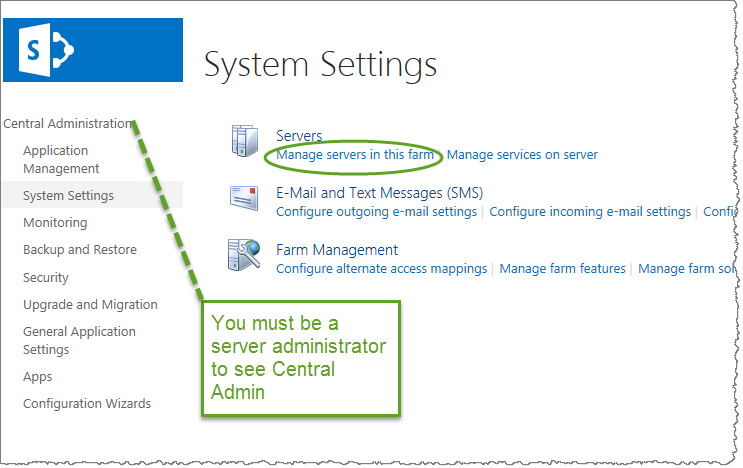
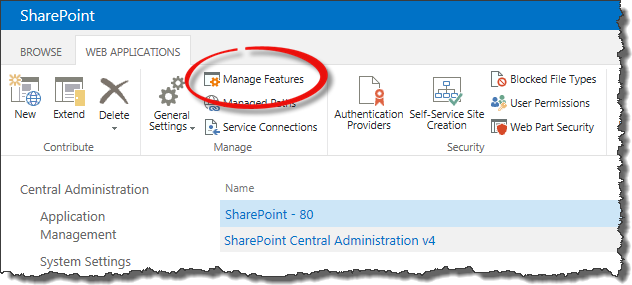 If the farm solutions are there and successfully deployed, go to Central Administration > Manage web applications. Click the web application you are using and when the ribbon appears, click Manage Features.
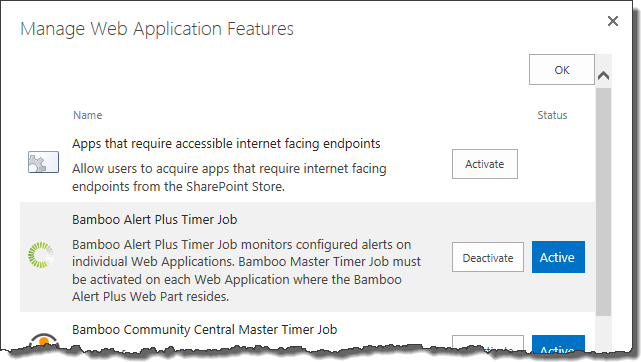 A list of features will be displayed. Bamboo Alert Plus Timer Job should be listed if the solution was deployed successfully to the web application.
 For very large rollups, creating a custom schedule is best because it causes the creation of a custom SharePoint timer job for this specific alert. The standard Alert Plus timer jobs could be used to process multiple alerts, but a custom timer job is responsible for only one alert. See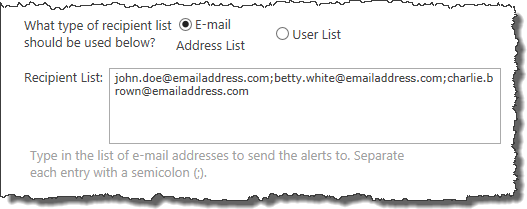
 The difference between the two alerts is most likely on the Event tab. The alert that sends a separate email message to each recipient is configured to Combine multiple alerts into summary notification. The alert that sends one email to the entire list is not configured this way.
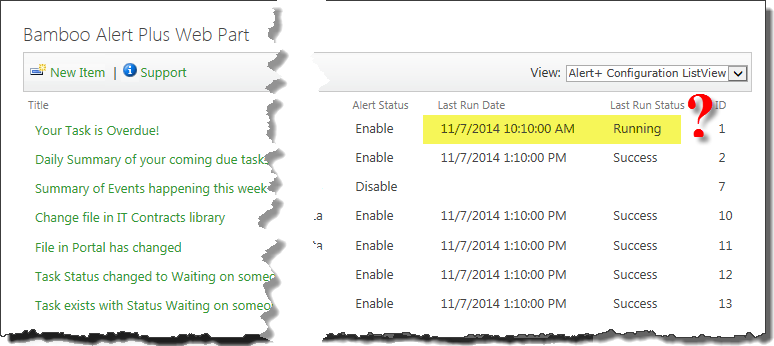 You have several alerts configured on a site. Everything was going OK, but people are now reporting that they aren’t getting their Overdue Task Reminders.
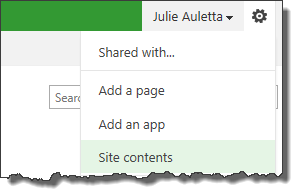 Go to View All Site Content on the site and open the Alert+ Configuration List.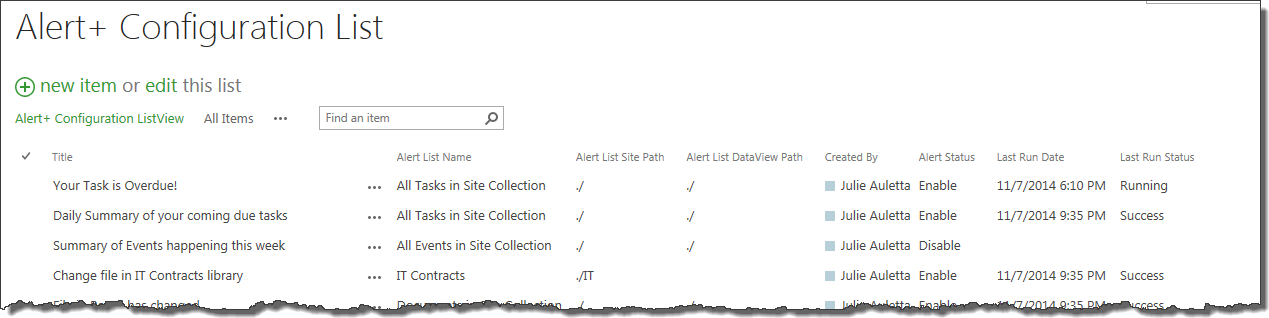
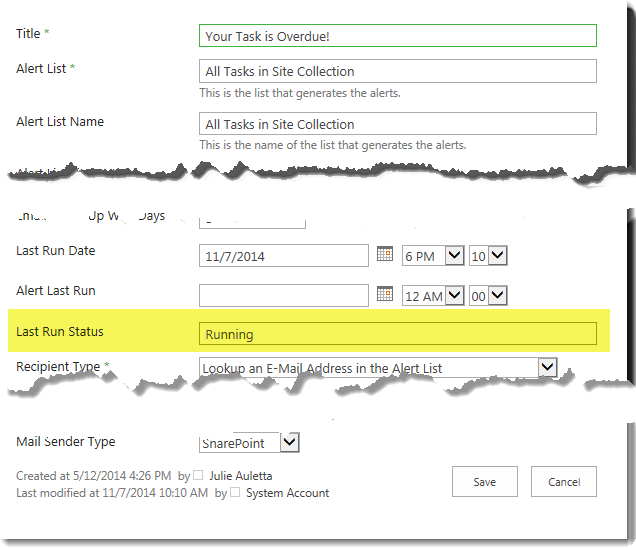 Edit the alert in question and change the Status column to Success and click Save. This will ensure that another timer job picks up the alert to process it.
 SharePoint 2013: